> For the complete documentation index, see [llms.txt](https://docs.mybytes.tech/llms.txt). Markdown versions of documentation pages are available by appending `.md` to page URLs; this page is available as [Markdown](https://docs.mybytes.tech/atlassian-cloud/zoho-desk-for-jira/administrator-guide/field-mapping-multiple-jira-status-to-a-single-zoho-desk-status.md).
# Field Mapping: Multiple Jira Status to a Single Zoho Desk Status
This feature allows you to map **multiple statuses to a single status** in a one way sync setup.
It is useful when one system has more granular statuses than the other and you want to normalize them into a simpler workflow.
This configuration works only for **one-way mappings**, such as:
* Jira → Zoho
* Jira ← Zoho
Bi-directional mapping is not supported for many to one status mapping because it would create ambiguity during synchronization.
### How Many to One Mapping Works
You can map multiple statuses depending on the direction:
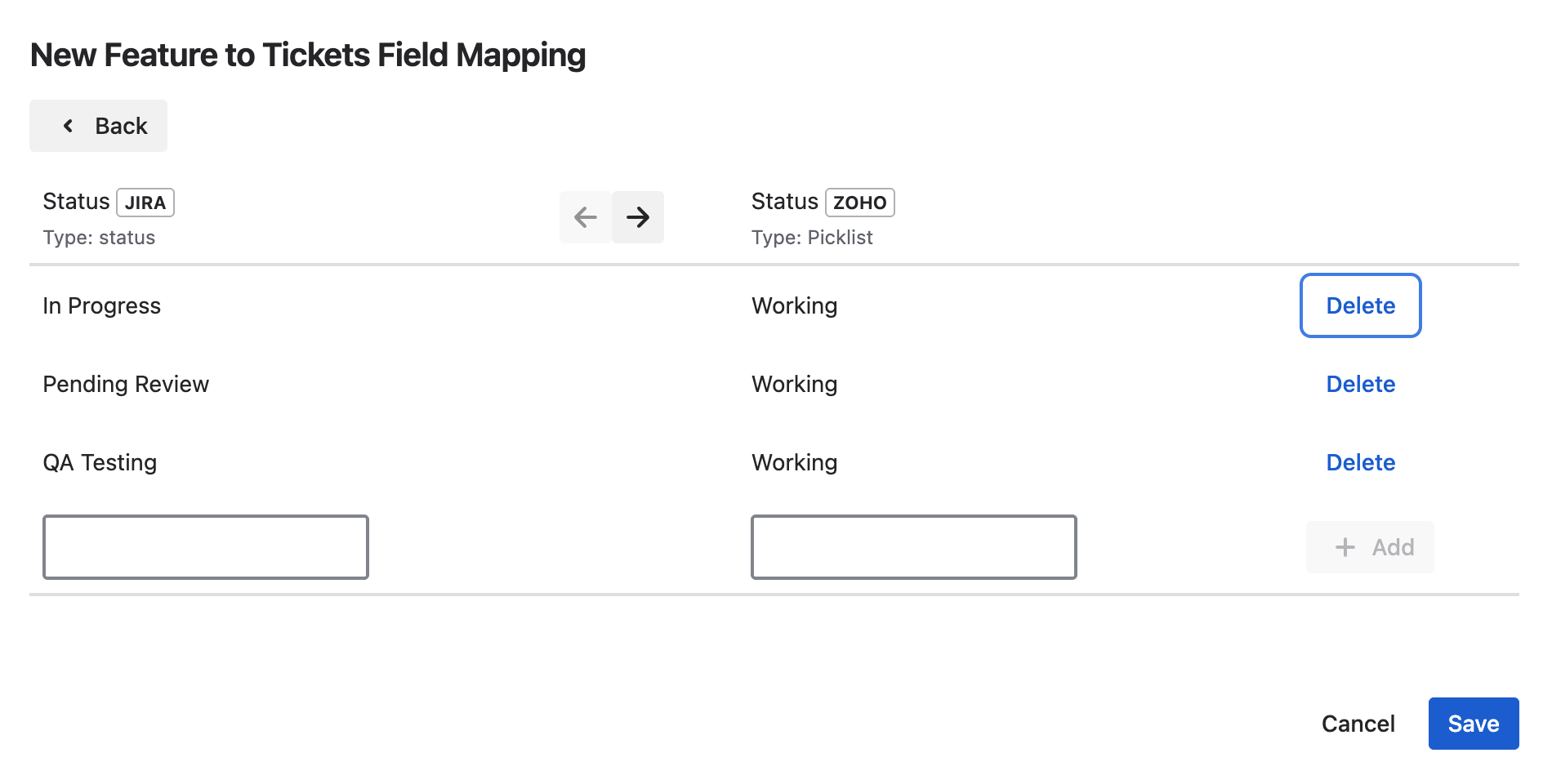
#### Outbound Mapping (Jira → Zoho)
* You **cannot** use the same Jira status more than once.
* You **can** map multiple Jira statuses to the **same Zoho status**.
Example:
| **Jira Status (Outbound)** | **Zoho Status** |
| -------------------------- | --------------- |
| In Progress | Working |
| Pending Review | Working |
| QA Testing | Working |
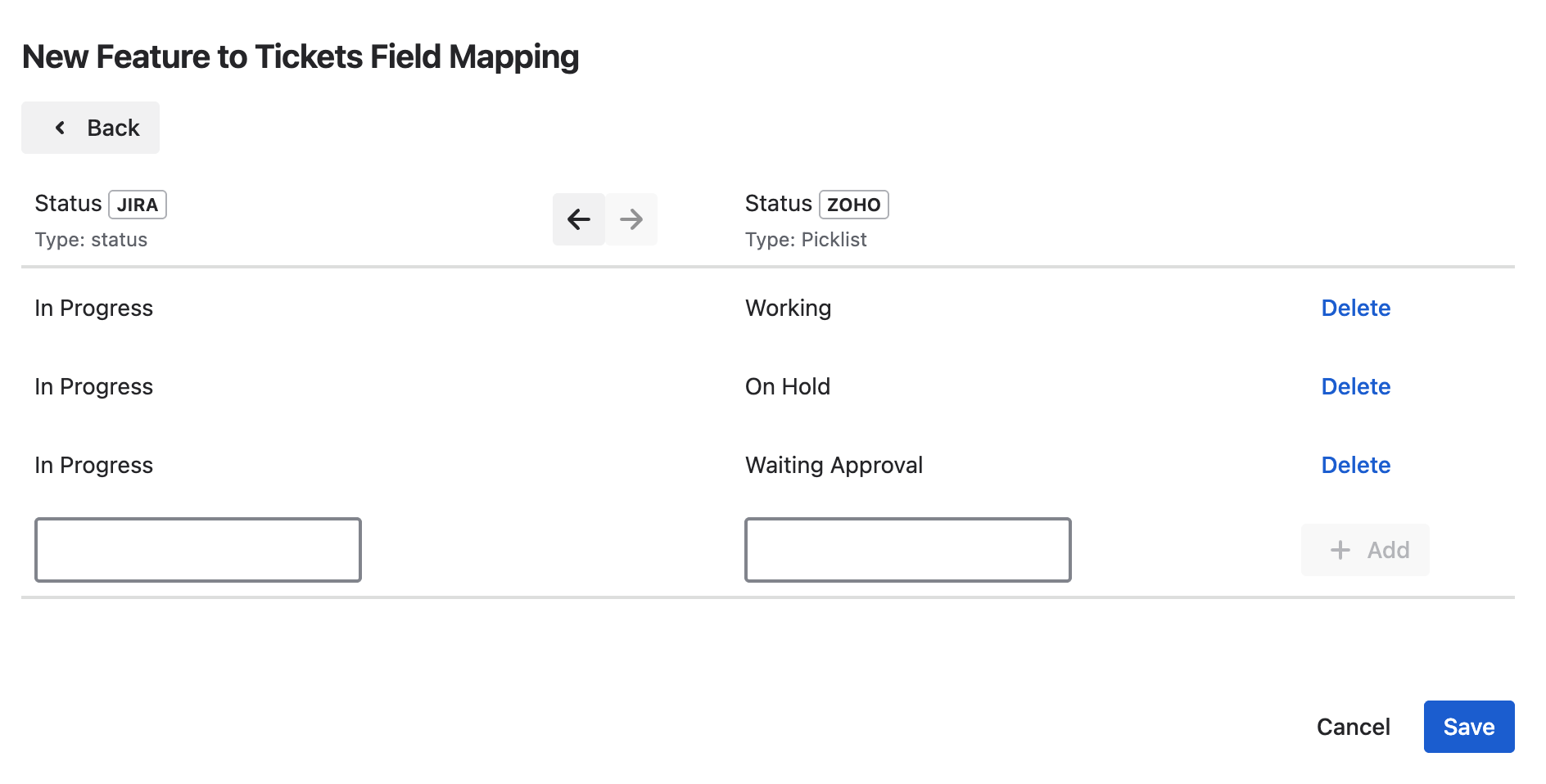
#### Inbound Mapping (Jira ← Zoho)
* You **cannot** use the same Zoho status more than once.
* You **can** map multiple Zoho statuses to the **same Jira status**.
Example:
| **Jira Status** | **Zoho Status (Inbound)** |
| --------------- | ------------------------- |
| In Progress | Working |
| In Progress | On Hold |
| In Progress | Waiting Approval |
***
### Step by Step Guide
#### 1. Go to the Connection Settings Page
Go to connection settings and navigate to the **Mapping** section.
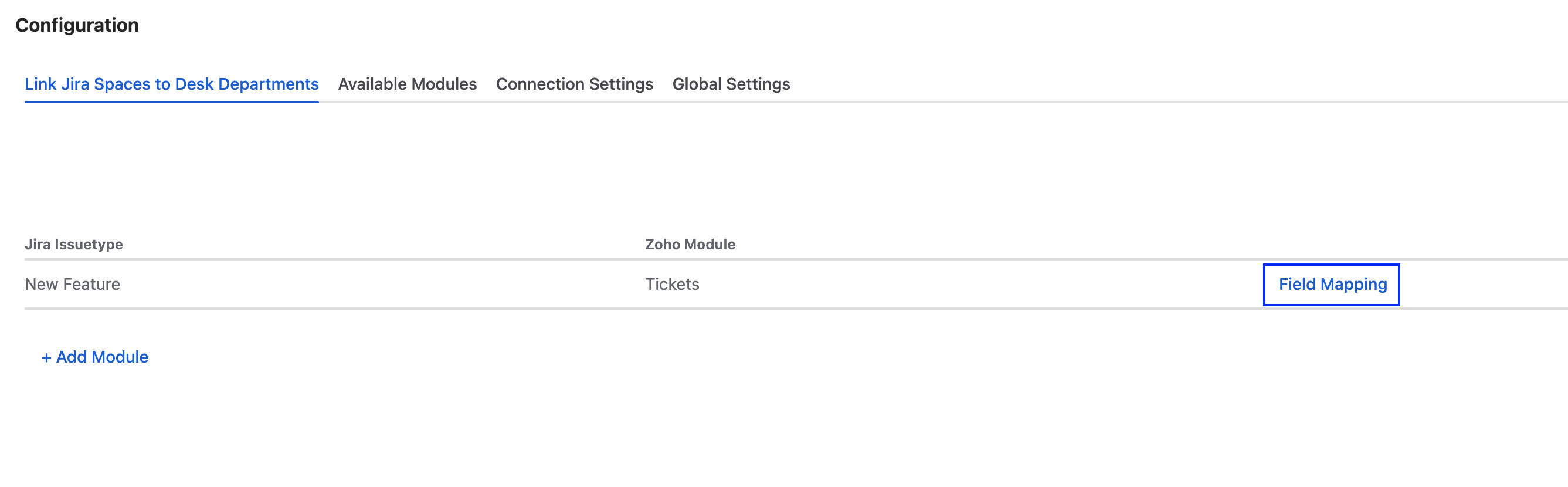
#### 2. Click on Field Mapping
Select the module you want to configure, then click on **Field Mapping**.
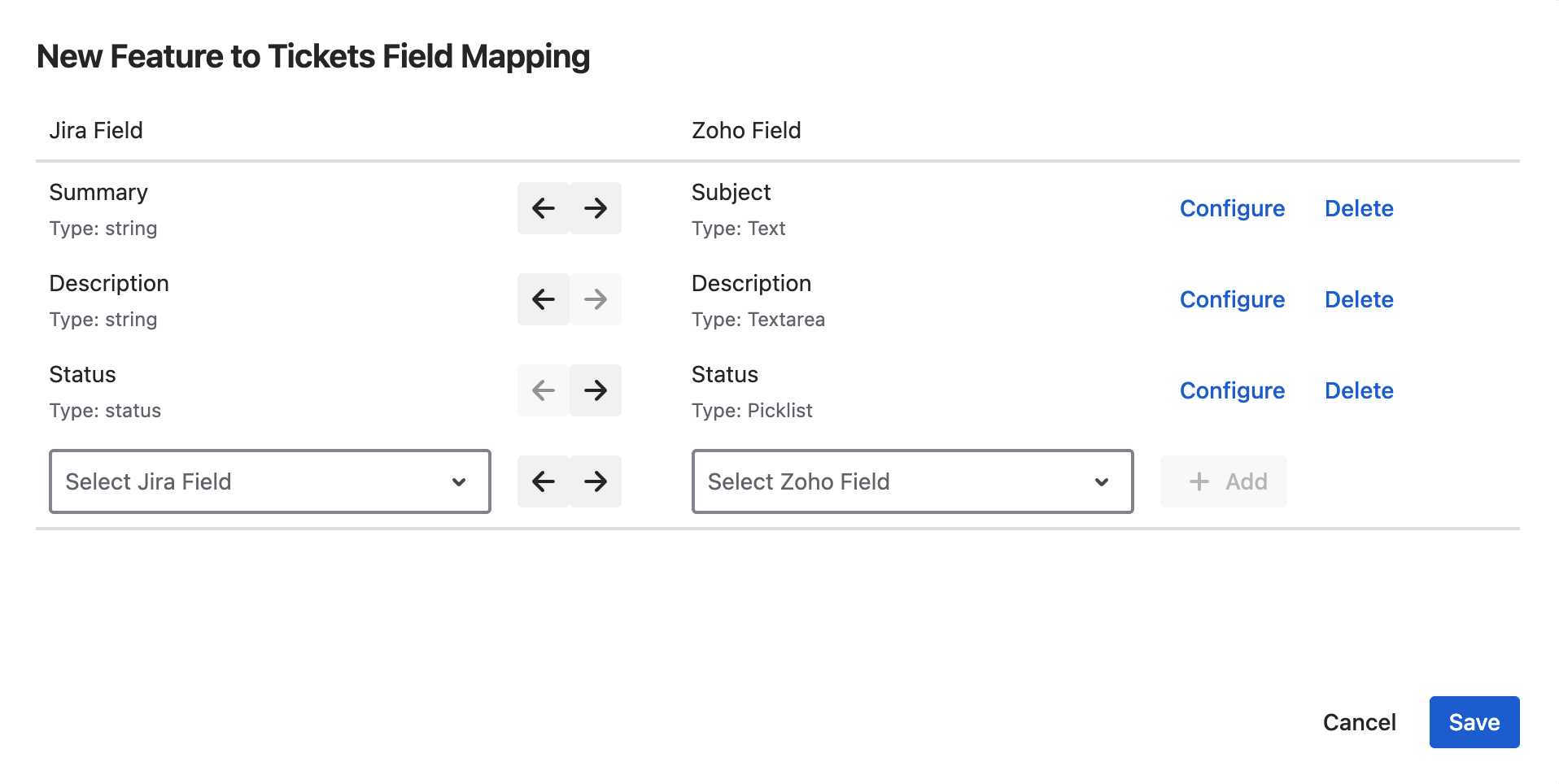
#### 3. Set One Way Mapping
Choose either:
* Outbound (Jira → Zoho) or
* Inbound (Jira ← Zoho)
This must be a one-way configuration.
#### 4. Click Configure Mapping
Find the status field and click **Configure**.
#### 5. Add Status Values
Add your mappings
* For outbound:
* Each Jira status can appear only once.
* Multiple Jira statuses can map to the same Zoho Desk status.
* For inbound:
* Each Zoho Desk status can appear only once.
* Multiple Zoho Desk statuses can map to the same Jira status.
#### 6. Click Save
Save the configuration.